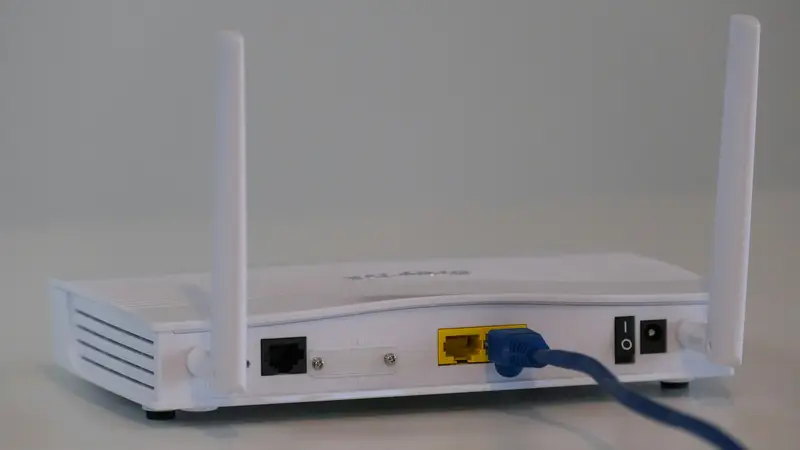
Few things are more frustrating than a picture that freezes just as something important happens. IPTV buffering is the most common complaint about streaming TV, but the good news is that most causes can be found and fixed at home. Sometimes it is the Wi-Fi, sometimes the device, sometimes the app settings – and occasionally the service itself. This guide walks you through ten proven tips, starting with the quickest checks.
Why IPTV buffering happens
Streaming video arrives in small chunks. Your player keeps a short buffer – a few seconds stored in advance – so playback continues smoothly. When data arrives more slowly than the video plays, the buffer empties and the picture stops while it refills.
The usual causes are:
| Cause | Typical sign |
|---|---|
| Weak or congested Wi-Fi | Buffering worse in some rooms, or when others are online |
| Slow or unstable broadband | Problems on every device |
| Underpowered device | Slow menus, problems mainly on HD/4K |
| App settings or cache | Issues on one app only |
| Busy servers | Problems at peak times on many channels |
| Traffic management by your ISP | Buffering on video streams while other sites work fine |
Before you change anything, try to work out which category you are in – it saves a lot of time.
10 tips to fix IPTV buffering
1. Restart everything
It sounds too simple, but it works surprisingly often. Turn off your router, streaming device and TV, wait 30 seconds, then switch the router on first and the rest once the internet is back.
2. Test your speed on the right device
Run a speed test on the TV, stick or box itself, in the evening. As a rule of thumb, you want roughly 10 Mbps per HD stream and 25 Mbps per 4K stream, steady rather than in bursts. If the result is much lower than what you pay for, the issue is your connection or Wi-Fi.
3. Use a wired connection
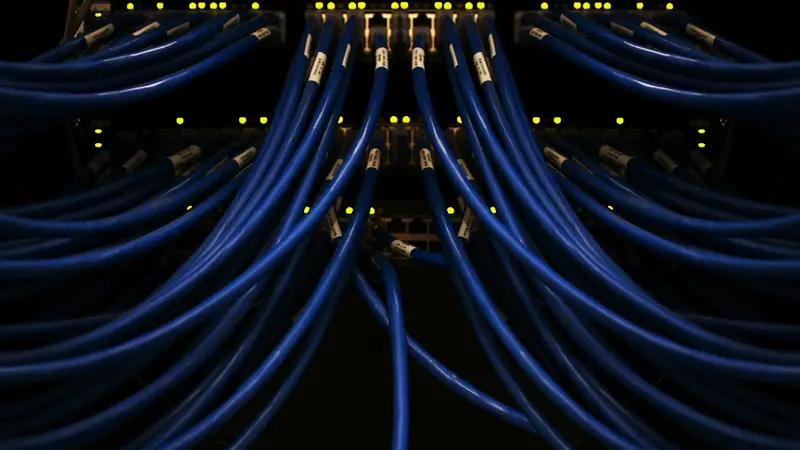
Ethernet is the single most effective fix for many people. If your device lacks a port, use a USB Ethernet adapter (available for Fire TV Sticks) or powerline adapters that carry the network over your home's electrical wiring.
4. Improve your Wi-Fi
If cable is impossible:
- Connect to the 5 GHz band rather than 2.4 GHz.
- Move the router out of cupboards and away from thick walls, mirrors and microwaves.
- Consider a mesh Wi-Fi system for larger homes.
- Change the Wi-Fi channel in the router settings if neighbours' networks are crowded.
5. Reduce competition on your network
Large downloads, game updates, cloud backups and other video streams all compete for bandwidth. Pause them while you watch, or use your router's quality-of-service (QoS) settings to prioritise the TV.
6. Clear the app cache and free up storage
On Android TV and Fire TV, go to the app settings and choose Clear cache (not clear data, which would remove your login). Uninstall apps you do not use – devices with nearly full storage slow down noticeably. Our Firestick guide shows where these settings are.
7. Adjust your player settings
Most IPTV players have options that make a real difference:
- Increase the buffer size (TiviMate and some others allow this).
- Switch the stream format between TS and HLS.
- Change the decoder between hardware and software.
- Try an external player such as VLC, or a different IPTV app altogether.

8. Pick a lower quality when needed
If a 4K channel buffers but the HD version plays smoothly, your connection or device cannot sustain 4K. Choosing Full HD at peak times is often a better experience than a 4K stream that keeps pausing. Our 4K speed and equipment guide explains what Ultra HD needs.
9. Check whether your ISP is slowing video
Some internet providers manage traffic at busy times. If IPTV buffers while websites and speed tests look fine, test with a reputable VPN for a short while. If it suddenly improves, traffic management may be the cause. If it gets worse, turn the VPN off – it is not the issue.
10. Upgrade an old device
Older sticks and budget boxes can struggle with modern codecs such as HEVC, especially in 4K. If your menus are sluggish and buffering happens even on a fast wired connection, a newer device may be the real fix. See our best IPTV box guide for what to look for.
A quick diagnostic routine
When buffering starts, run through this order:
- Does it happen on several channels? If only one, it is probably that stream – try another quality or report it to support.
- Does it happen on another device in the same room? If not, the first device or app is to blame.
- Does it happen on a wired connection? If not, your Wi-Fi is the problem.
- Does it happen only at peak times? Then network or server load is likely – lower the quality and contact support.
Keep a short log
If buffering comes and goes, jot down when it happens for a few days: the date, the time, the channel, the device and whether you were on Wi-Fi or cable. Patterns appear quickly. Problems only at 9 pm on weekends point to network or server load; problems only in the bedroom point to Wi-Fi coverage; problems on one app only point to its settings. A simple note on your phone is enough.
Prevent buffering before it starts
Some habits keep problems away in the first place:
- Restart the streaming device once or twice a week.
- Keep the player app and device software updated.
- Schedule big downloads and backups for the night, not during your viewing time.
- Check your router's placement whenever you rearrange furniture.
When to contact support
If you have worked through the tips and buffering continues across devices and channels, contact your provider with useful details: which device and app you use, which channels are affected, the time it happened and your speed test result. Clear information helps support find a solution faster. IPTVella's support team answers by email 24/7.
An honest note: no streaming service can promise zero interruptions, because so much depends on networks outside anyone's control. But with a stable service and a well-tuned home set-up, interruptions should be rare.
Conclusion
Most IPTV buffering can be fixed without technical knowledge: restart your equipment, test your speed on the right device, use Ethernet or better Wi-Fi, tidy up your app settings and choose the right quality for your connection. If the problem persists, a good support team will help you narrow it down.
Want to compare how a well-maintained service performs on your network? Try IPTVella with a free 24-hour test and see our plans when you are ready.
Questions and answers
Why does IPTV buffer only in the evening?
Evenings are when most people stream, so both your broadband provider's network and the IPTV servers are under more load. A wired connection and choosing a lower-quality stream can help at peak times.
Does a VPN fix IPTV buffering?
Sometimes. If your internet provider slows down video traffic, a good VPN can help. In many other cases a VPN adds overhead and makes buffering slightly worse, so test both ways.
Is buffering caused by my device or the service?
Test another channel, another device and another app. If everything buffers everywhere, it is likely your connection or the service; if only one device struggles, the device or app is the likely cause.
What internet speed stops IPTV buffering?
As a rough guide, aim for about 10 Mbps of stable speed per HD stream and around 25 Mbps per 4K stream. Stability matters as much as the headline speed.
Ready to try IPTVella?
Test the picture quality and channel list on your own TV for 24 hours, free. No card needed.