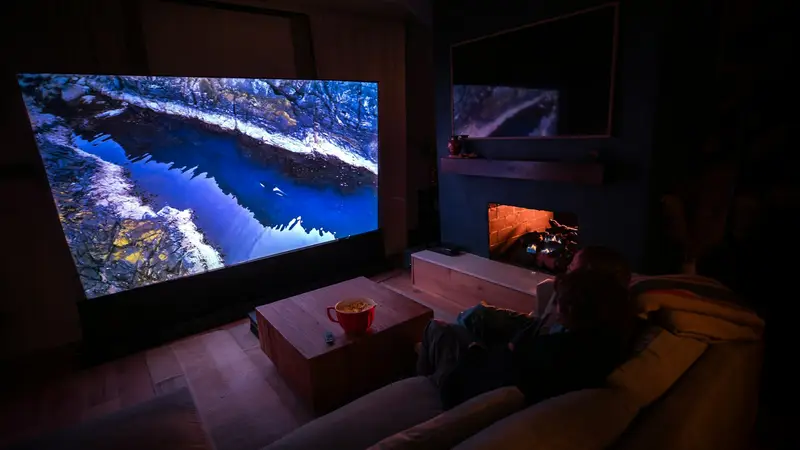
Ultra HD has become the standard for new televisions, and many people now want to watch IPTV in 4K – films with crisp detail, nature documentaries with vivid colour and sport that looks almost real. But 4K is demanding. It needs a suitable TV, a capable streaming device and an internet connection that can deliver lots of data without hiccups. This guide explains what you need for smooth IPTV 4K viewing and how to get the most from your set-up.
What 4K actually means
4K (also called Ultra HD or UHD) has a resolution of 3840 × 2160 pixels – four times as many as Full HD. More pixels mean more detail, but also much more data to deliver every second.
Many 4K streams also use HDR (high dynamic range), which improves brightness and colour. To benefit from it, every part of the chain – stream, device and TV – needs to support it.
Internet speed for IPTV 4K
Speed is the first thing to check. These are practical rules of thumb, not guarantees, because real needs vary with the stream and the codec used:
| Quality | Suggested stable speed per stream |
|---|---|
| SD | 3–5 Mbps |
| HD (720p) | 5–8 Mbps |
| Full HD (1080p) | 8–12 Mbps |
| 4K Ultra HD | around 25 Mbps |
Two points are easy to miss:
- It is per stream. If one person watches 4K while someone else streams HD in another room, add both together.
- Stability matters as much as speed. A connection that averages 50 Mbps but drops sharply now and then may struggle more than a steady 30 Mbps line.
How to test properly
- Run a speed test on the device you watch on, not just on your phone next to the router.
- Test in the evening, when your broadband provider's network is busiest.
- Repeat a few times and look at the lowest results, not only the best.
The equipment you need
A 4K TV with the right inputs
Your TV needs a 4K panel and an HDMI input that supports HDMI 2.0 or later and HDCP 2.2. Most 4K TVs sold in recent years meet this, but on some models only certain HDMI ports do – check the labels on the back or the manual.
A capable streaming device
Not every stick or box can handle 4K IPTV. Look for:
- 4K output at 60 frames per second.
- HEVC (H.265) decoding – many 4K streams use it. Support for AV1 is a bonus.
- HDR10 (and optionally other HDR formats).
- Enough memory – 2 GB RAM or more.
- Ethernet, either built in or via an adapter.
Good options include a Fire TV Stick 4K or 4K Max, a recent certified Android TV / Google TV box, an Apple TV 4K, or the built-in apps on a modern Samsung or LG TV. Our best IPTV box guide compares devices in more detail, and our Smart TV guide covers TV apps.
A good HDMI cable
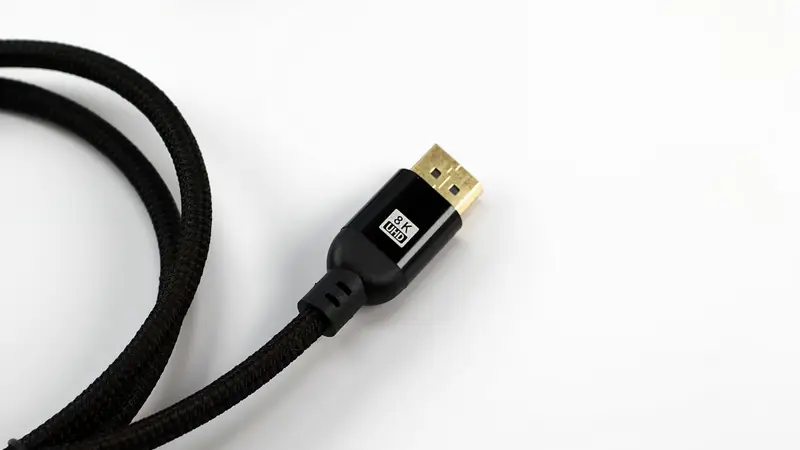
For 4K HDR at 60 fps, use a cable labelled High Speed or, better, Premium High Speed or Ultra High Speed. Very old cables can cause flickering or blank screens.
Set up your network for 4K
Even with fast broadband, your home network can be the weak link.
- Use Ethernet where you can. A cable from the router to the TV or box is the most reliable option.
- If you must use Wi-Fi, connect to the 5 GHz band rather than 2.4 GHz and keep the router within a room or two of the TV.
- Consider a mesh system or powerline adapters if the TV is far from the router.
- Reduce competition – pause big downloads, game updates and cloud backups while watching.
- Restart your router every so often, and keep its firmware up to date.
Wi-Fi standards in plain English
If you are buying a new router or device, the Wi-Fi standard matters. Wi-Fi 5 (802.11ac) is usually enough for a single 4K stream in the same or next room. Wi-Fi 6 and newer handle several busy devices at once more gracefully, which helps in homes where phones, laptops and games consoles share the network in the evening. Both the router and the streaming device need to support the newer standard to benefit.
More than one 4K TV
If two people watch 4K at the same time in different rooms, you need roughly double the bandwidth – and your plan needs enough connections for two simultaneous streams. Check both before you plan a 4K evening in every room. For many homes, a sensible compromise is 4K on the main TV and Full HD elsewhere.
Settings that help
- Match the frame rate – on many Android TV and Fire TV devices you can enable "match original frame rate" to avoid judder.
- Check the output resolution – make sure your device is set to 4K, not 1080p.
- Choose the right picture mode – "Movie" or "Filmmaker" modes usually give the most natural 4K image.
- Pick the right stream – if a 4K channel stutters, try the Full HD version; it may look better than a 4K stream that keeps pausing.
IPTV 4K troubleshooting
| Problem | Likely cause | Fix |
|---|---|---|
| 4K channel buffers, HD is fine | Not enough sustained bandwidth | Use Ethernet, close other downloads |
| No picture or black screen | Device or app cannot decode HEVC | Try another player or switch decoder |
| Colours look washed out | HDR mismatch | Check HDR settings on device and TV |
| Picture limited to 1080p | Wrong HDMI port or output setting | Use an HDMI 2.0 port, set output to 4K |
| Stutter on motion | Frame-rate mismatch | Enable frame-rate matching |
For more general fixes, see our guide to IPTV buffering.
Is 4K worth it for you?
Before upgrading everything, ask yourself how much of what you watch is actually available in 4K. Many live channels are still broadcast in HD, while 4K is more common for films, documentaries and selected events. A good HD stream on a well-calibrated TV can look excellent, and a smooth Full HD picture is always better than a 4K picture that keeps pausing.
4K makes the biggest difference on larger screens – roughly 50 inches and up – and when you sit fairly close. On a smaller TV across a big room, Full HD can look almost as good and is less demanding on your connection. A good service gives you both options, so you can choose per channel.
Conclusion
Smooth IPTV 4K viewing depends on three things working together: a stable connection of around 25 Mbps per stream, a 4K-capable device with HEVC support, and a 4K TV with the right HDMI input. Get those right, use a wired connection where possible and you will enjoy Ultra HD the way it was meant to be seen.
Want to see 4K quality on your own screen? Request a free 24-hour test and then pick the plan that suits you on our plans page.
Questions and answers
What internet speed do I need for IPTV 4K?
As a rule of thumb, plan for around 25 Mbps of stable speed per 4K stream, plus extra headroom for other people and devices using the connection at the same time.
Can a Fire TV Stick play IPTV in 4K?
Yes, the 4K versions of the Fire TV Stick can play 4K streams, provided the TV supports 4K and the connection is strong enough. Older non-4K sticks cannot.
Why does my 4K IPTV channel keep buffering?
Usually because the connection cannot sustain the required speed, often due to Wi-Fi. Try a wired connection, close other downloads or switch to the Full HD version of the channel.
Ready to try IPTVella?
Test the picture quality and channel list on your own TV for 24 hours, free. No card needed.