IPTV setup guides
Pick your device and follow the steps. Most people are watching in about 10 minutes. You will need the login details we send by email.
Samsung & LG Smart TV
- Open the app store on your TV.
- Search for an IPTV player app and install it.
- Open the app and choose to add a playlist or Xtream login.
- Enter the details from our email and save.
- Wait for channels to load, then press play.
Amazon Fire TV Stick
- From the home screen, open Find and then Search.
- Search for an IPTV player app available in the Amazon Appstore and install it.
- Open the app and choose Xtream Codes or M3U login.
- Enter your details from our email.
- Channels and the TV guide load in a minute or two.
Android TV box & Google TV
- Open the Google Play Store.
- Install an IPTV player app.
- Choose Add user or Add playlist.
- Enter the login from our email.
- Open Live TV and start watching.
iPhone, iPad & Apple TV
- Open the App Store.
- Install an IPTV player app.
- Add a new playlist with your Xtream or M3U details.
- Allow the app to load channels.
- Tap a channel to watch.
Windows PC & Mac
- Install an IPTV player for your computer.
- Open it and add a new playlist.
- Paste the M3U link or Xtream details from our email.
- Save and wait for channels to load.
- Double-click a channel to watch.
MAG & Formuler boxes
- Send us your box's MAC address in the order form.
- We activate the portal for your device.
- Go to Settings, then Servers, then Portals.
- Enter the portal URL from our email and restart.
- The channel list appears after the restart.
Tips for smooth streaming
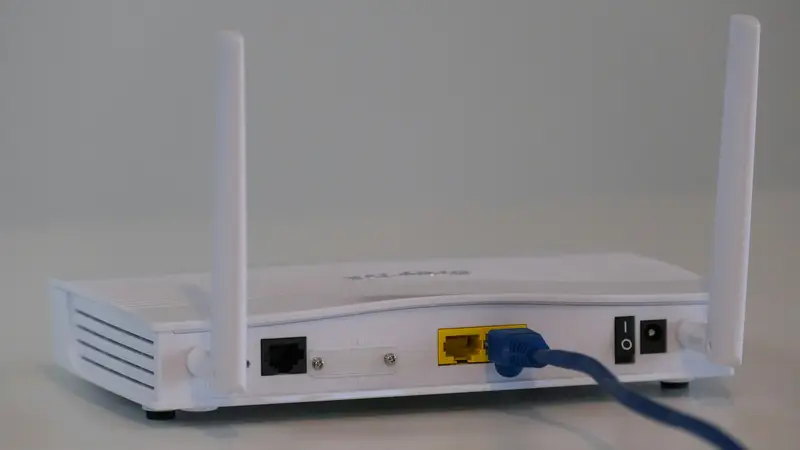
- Use a cable connection when you can, or put the router near the TV.
- 15 Mbps is enough for HD, 25 Mbps or more for 4K.
- Restart your device and router if channels stop loading.
- Keep your IPTV app updated.
Try it free for 24 hours
Test the picture quality and channel list on your own TV before you pay anything. No card needed.