Modern televisions are small computers, and that makes an IPTV smart TV set-up one of the simplest set-ups you can have: no extra box, no extra remote, just an app and your subscription. Samsung and LG are the two most common brands in European living rooms, and both can run IPTV player apps. This guide explains how it works on each, which kind of app to look for, and what to do if your TV is older or the app store is limited.
How IPTV smart TV set-ups work
Your TV does not "receive" IPTV on its own. You need two things:
- A subscription – this gives you login details (Xtream-style server, username and password) or an M3U playlist link.
- A player app on the TV – this reads your login and shows the channels, guide, films and series.
The player is usually free or has a small one-off activation fee charged by the app developer. That fee is separate from your IPTV subscription.
| Brand | Operating system | Where to find apps |
|---|---|---|
| Samsung | Tizen | Apps section on the home screen |
| LG | webOS | LG Content Store |
Before you start: check your TV
- Age of the TV – sets from roughly the last six or seven years generally have the best app support. Older models may have a smaller store or slower processors.
- Software update – install the latest firmware via the settings menu (Support > Software Update on Samsung, General > About this TV on LG).
- Internet connection – plug in an Ethernet cable if you can. Built-in Wi-Fi on TVs is often weaker than on phones or laptops.
- Free storage – remove apps you do not use.
Step-by-step setup on Samsung and LG
The process takes about ten minutes on either brand. Have your login details from your provider to hand – ideally on your phone, so you can copy them accurately.
Samsung Smart TV
- Press the Home button and open Apps.
- Use the search icon to look for "IPTV" or "M3U player".
- Read the descriptions and reviews, then install a player that supports Xtream or M3U logins.
- Open the app. It will either ask for your login directly or show a MAC address / device ID with a website address.
- If it shows a MAC address, go to the app's official website on your phone or computer, enter the MAC and your playlist details there, and then restart the app on the TV.
- Wait for the channel list to load, then open the guide.
LG Smart TV
The steps are very similar on LG:
- Press Home and open the LG Content Store (sometimes simply called Apps).
- Search for an IPTV or M3U player.
- Install it and open it.
- Enter your Xtream details or M3U URL, or register the TV's MAC address on the app's website as described above.
- Let the channel list and EPG download.
Tip: on both brands, check whether the app lets you enter an EPG (TV guide) link separately. With an M3U playlist you may need to add one supplied by your provider.
About MAC-based activation
Several Smart TV players work slightly differently from apps on phones or sticks. Instead of typing a long URL with the TV remote, you open the app's website on your phone or computer, enter the MAC address or device key shown on the TV, and paste your playlist there. When you restart the app, the channels appear.
This is convenient, but bear in mind:
- The player app and its website are run by the app developer, not by your IPTV provider.
- Any activation fee is paid to the app developer and is separate from your subscription.
- Only use the app's official website, which is normally shown inside the app itself.
- If you change TV, you will need to activate the app again on the new set.
Which player app should you choose?
App availability changes from country to country and model to model, so we avoid recommending one "right" app for every TV. Instead, look for these features:
- Supports Xtream Codes API logins (easiest) and M3U URLs.
- Displays an EPG in a grid layout.
- Handles films and series sections, not just live channels.
- Has recent updates and positive reviews.
- Offers a free trial period of the app itself before you pay any activation fee.
If IPTV Smarters is available on your TV, it is a familiar choice – our IPTV Smarters Pro guide explains its menus in detail.
When to add a stick or box instead
A Smart TV app is not always the best fit. Consider an external device if:
- Your TV is older and the app store has no suitable player.
- The TV feels slow when switching channels or opening the guide.
- You want a specific player app that only runs on Android, such as TiviMate.
- You want 4K playback with modern formats and your TV's processor struggles.
A Fire TV Stick or an Android TV box plugs into an HDMI port and usually costs less than a night out. Our guide to the best IPTV box in 2026 compares the main options.
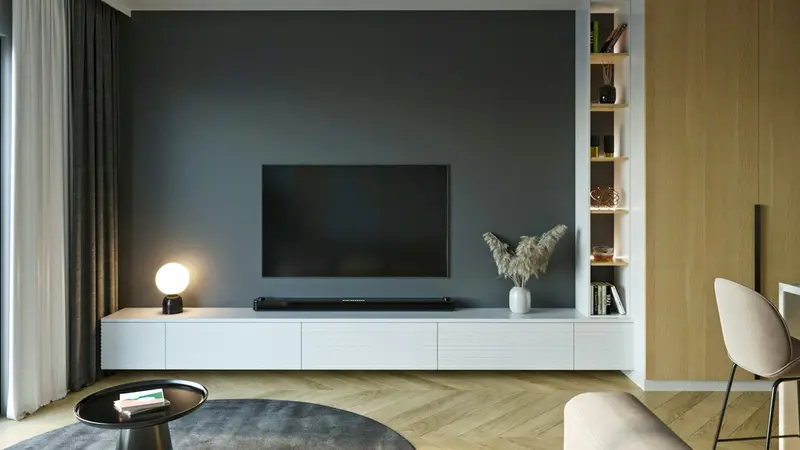
Getting the best picture on your Smart TV
A few settings help your IPTV smart TV set-up look and feel its best:
- Picture mode – choose "Movie" or "Filmmaker" mode for films, "Standard" for general TV. Avoid "Dynamic", which can look harsh.
- Motion smoothing – try turning it down or off if live sport looks unnatural; some people prefer it on.
- Wired connection – use Ethernet whenever possible.
- Quality choice – if a channel stutters, switch to its HD or SD version instead of 4K.
- Restart occasionally – turning the TV fully off (not standby) clears memory. On some Samsung models, holding the power button on the remote does a full restart.
If you are aiming for Ultra HD, read our article on 4K IPTV speed and equipment.
Troubleshooting
| Issue | What to try |
|---|---|
| App not found in the store | Your model or region may not list it – try another player or use a stick |
| Playlist will not load | Check the URL or login, and that the MAC address was entered correctly on the website |
| No TV guide | Add the EPG URL from your provider, then refresh |
| Picture freezes | Use Ethernet, restart the router and TV, try a lower quality stream |
| App stopped working after an update | Reinstall the app and re-enter your details |
Conclusion
Watching IPTV on a Samsung or LG Smart TV is the neatest set-up you can have: one screen, one remote and no extra cables. Find a reputable player in your TV's app store, enter your login, add the guide and you are ready. If your TV is older or limited, a small streaming stick fills the gap cheaply.
Want to see how it looks on your own TV? Ask for a free 24-hour test, then pick the plan that suits you on our plans page.
Questions and answers
Can I watch IPTV on a Smart TV without a box?
Yes. Most Samsung and LG Smart TVs from recent years can run an IPTV player app directly, so you only need the app and your subscription details.
Which app should I use for IPTV on a Samsung or LG TV?
Search your TV's app store for an IPTV or M3U player. The choice varies by model and country; pick one with good recent reviews that supports Xtream or M3U logins.
Why does my Smart TV IPTV app ask for a MAC address?
Some Smart TV player apps link your playlist to the TV using its MAC address or a device ID. You enter your playlist on the app's website, and it then appears on the TV.
Is a Smart TV or a streaming stick better for IPTV?
A Smart TV is the tidiest option. A stick or Android box usually offers more player choices and can feel faster on older TVs.
Ready to try IPTVella?
Test the picture quality and channel list on your own TV for 24 hours, free. No card needed.