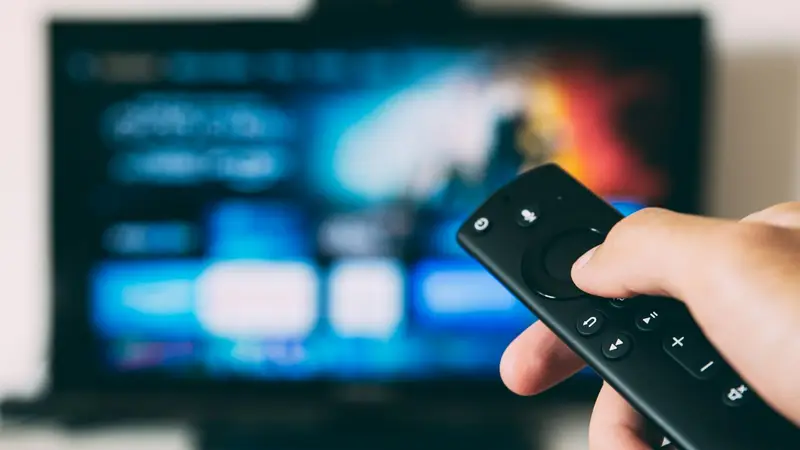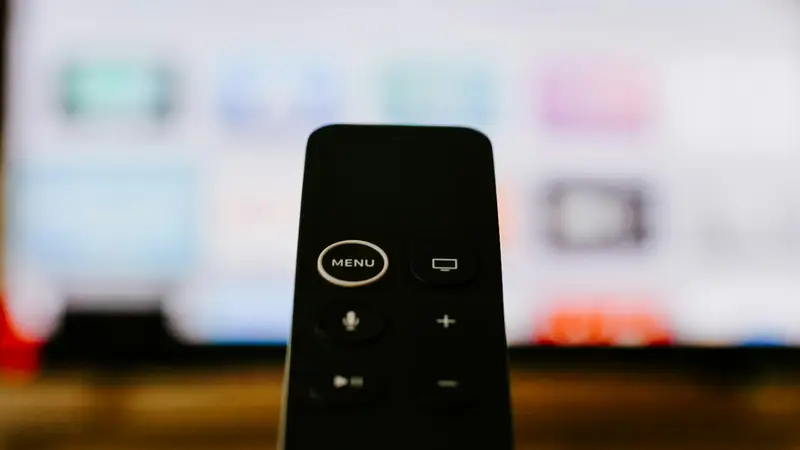
The Amazon Fire TV Stick is one of the most popular ways to watch IPTV, and it is easy to see why: it is small, affordable and plugs straight into any TV with an HDMI port. A complete IPTV Firestick set-up takes around ten minutes once you know the steps. This guide covers which player app to use, how to install it, how to add your subscription and how to keep things running smoothly.
What you need before you start
- A Fire TV Stick (a 4K model is recommended) connected to your TV and the internet.
- An IPTV subscription with either Xtream-style login details (server URL, username, password) or an M3U link.
- A player app – the Fire TV does not have a built-in IPTV player.
- A stable connection: around 10 Mbps for HD and 25 Mbps for 4K is a good rule of thumb.
If you do not have a subscription yet, you can request a free 24-hour test and follow this guide with it.
Choosing the best IPTV for Firestick: the player
People searching for the "best IPTV for Firestick" are often really looking for two things: a reliable service and a good app. The service supplies the channels; the app is how you watch them. Popular players on Fire TV include:
| App | Strengths | Things to know |
|---|---|---|
| IPTV Smarters Pro | Simple, supports Xtream and M3U, films and series sections | Interface feels more app-like than TV-like |
| TiviMate | Excellent TV guide, fast zapping, recordings with premium | Some features need a paid premium upgrade |
| VLC | Free, plays almost any stream | Basic interface, no proper guide |
For most beginners, IPTV Smarters Pro is a good starting point. If you watch a lot of live TV and want a traditional guide, read our TiviMate setup guide.
Step 1: Install your player app
Option A: the Amazon Appstore (easiest)
- From the Fire TV home screen, open Find (the magnifying glass) and select Search.
- Type the name of the player app.
- If it appears, select Get or Download, then Open.
If your player is available in the Appstore, skip straight to Step 2 – this is the simplest and safest route, and the app will update itself automatically.
Option B: when the app is not in the Appstore
Some official player apps are not listed in every country. In that case, you can install them from the developer's official website using the free Downloader app.
First, enable apps from unknown sources:
- Go to Settings > My Fire TV.
- If you do not see Developer options, open About, highlight your device name and press the select button seven times until a message confirms you are a developer.
- Go back to Developer options and turn on Install unknown apps for Downloader (on some older models this is called Apps from Unknown Sources).
Then install the player:
- Install Downloader from the Amazon Appstore.
- Open it and enter the download address published on the player developer's official website.
- Install the file when prompted, then delete the installation file to save space.
Only install apps from sources you trust. Modified apps from random websites can contain malware, and they will not receive security updates. Once your player is installed, you can switch "Install unknown apps" back off for extra peace of mind – the app you installed keeps working.
Put the app on your home screen
Apps installed this way do not always appear on the main row. Hold the Home button, choose Apps, highlight your player, press the menu button (three lines) and select Move to place it at the front.
Step 2: Add your IPTV login
Open your player app. In IPTV Smarters Pro, for example:
- Choose Login with Xtream Codes API.
- Enter any name, then your username, password and server URL exactly as provided (including
http://and the port number if there is one). - Select Add user and wait while live TV, films and series load.
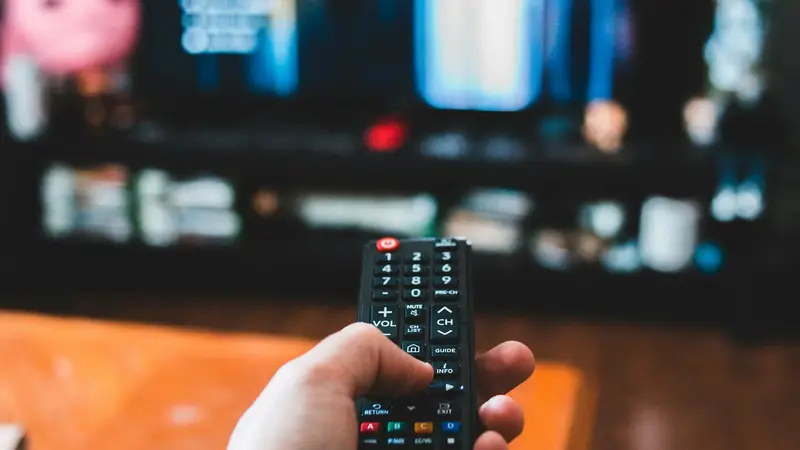
Typing long addresses with the Fire TV remote is fiddly. Two tricks help: the free Amazon Fire TV app on your phone works as a remote with a proper keyboard, and many players let you enter details slowly and check them on screen before saving. Watch out for letters that look alike, such as a capital "I" and a lower-case "l", or the number zero and the letter "O".
Prefer an M3U playlist? Choose the playlist option and paste the link instead. Our full IPTV Smarters Pro guide has screenshots-style explanations of each option.
Step 3: Optimise your IPTV Firestick set-up
A few small tweaks can make a noticeable difference:
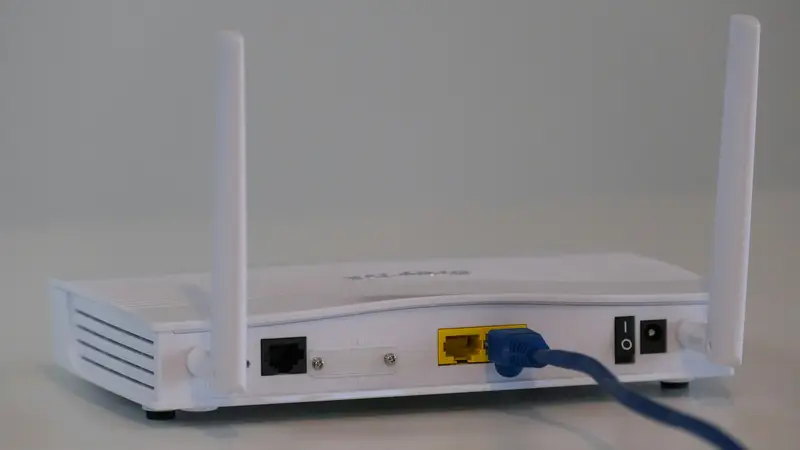
- Use an Ethernet adapter – a wired connection is usually more stable than Wi-Fi.
- Clear the cache – go to Settings > Applications > Manage Installed Applications, select the player and choose Clear cache.
- Close background apps – restart the stick now and then to free up memory.
- Keep the system updated – check Settings > My Fire TV > About > Check for updates.
- Turn off data monitoring – in Settings > Preferences > Data Monitoring, switch it off so it does not limit video quality.
- Free up storage – uninstall apps you do not use.
Troubleshooting common Firestick problems
| Symptom | Likely cause | Fix |
|---|---|---|
| App will not install | Unknown sources not enabled | Turn on Install unknown apps for Downloader |
| Login rejected | Typo or missing port | Re-enter details carefully, check the URL |
| Picture freezes in the evening | Network congestion or weak Wi-Fi | Use Ethernet, move router, test a lower quality |
| Stick feels slow | Full storage or memory | Clear cache, uninstall unused apps, restart |
| No sound on some channels | Audio format setting | In display and sounds, try changing the audio output to stereo or PCM |
If buffering continues, our article on fixing IPTV buffering goes through ten more fixes in order.
Is a Firestick good enough for 4K IPTV?
A Fire TV Stick 4K or 4K Max handles 4K streams well, provided your internet connection and TV support it. Older non-4K models are fine for HD but may struggle with demanding streams. If you want the most power and a built-in Ethernet port, an Android TV box can be a better fit.
To get the most out of 4K on a Fire TV Stick:
- Check that the stick is plugged into an HDMI port on the TV that supports 4K (often labelled HDCP 2.2 or 4K).
- In Settings > Display & Sounds > Display, set the video resolution to Auto or the 4K option.
- Turn on Match original frame rate if your model offers it, for smoother motion.
- Use an Ethernet adapter – 4K streams need a steady connection of around 25 Mbps.
If a 4K channel keeps pausing while the HD version plays smoothly, the bottleneck is usually the connection rather than the stick.
Conclusion
Getting IPTV on Firestick working is straightforward: pick a player, install it from the Appstore or the developer's official site, add your login and optimise a few settings. With a decent connection and a quality service, the little stick becomes a very capable TV hub.
Once your trial has convinced you, choose a plan that suits your viewing on the IPTVella plans page – from €9 for one month, with no contract.
Questions and answers
Which app is best for IPTV on Firestick?
IPTV Smarters Pro and TiviMate are the most popular choices. Smarters is simple and free to start; TiviMate has a very TV-like guide and is popular with people who watch a lot of live TV.
Do I need to jailbreak my Firestick for IPTV?
No. Installing a legitimate player app and entering your subscription details does not require any modification of the device.
Why is IPTV buffering on my Firestick?
The most common causes are weak Wi-Fi, an older Fire TV model or a full cache. Moving the router closer, using an Ethernet adapter and clearing the app cache often help.
Which Fire TV Stick should I buy for IPTV?
A 4K model is the safest choice in 2026. It handles HD and 4K streams and modern video formats better than older basic sticks.
Ready to try IPTVella?
Test the picture quality and channel list on your own TV for 24 hours, free. No card needed.