Roku and Apple TV are two of the most popular streaming platforms in the UK, the US, Canada and Australia, but they work very differently when it comes to IPTV. Apple TV is straightforward: you install a player from the App Store and log in. An IPTV Roku setup is trickier, because Roku keeps its platform closed. This guide explains the realistic options for both, with step-by-step instructions and tips to get the best picture.
Why Roku and Apple TV are different
Both platforms only allow apps from their own stores, but the selection of IPTV players differs a lot.
| Feature | Roku | Apple TV |
|---|---|---|
| App source | Roku Channel Store only | Apple App Store only |
| IPTV player choice | Limited, varies by region | Good selection |
| Sideloading | Developer mode only, not practical | Not available |
| Screen mirroring | Supported on many models (from Android/Windows; AirPlay on some models) | AirPlay from iPhone, iPad, Mac |
| 4K and HEVC | Yes on 4K models | Yes on Apple TV 4K |
IPTV Roku options that actually work
There is no single perfect way to watch IPTV on Roku, but there are three practical approaches.
Option 1: An M3U player from the Roku store
From time to time, the Roku Channel Store offers apps that can play M3U playlists. Availability changes, and quality varies.
- On the Roku home screen, go to Streaming Channels (or Apps) and open Search Channels.
- Search for "M3U" or "IPTV player".
- Read the description to check it accepts M3U URLs, and look at recent reviews.
- Install it, open it and follow its instructions to add your playlist – some apps ask you to enter the link on a website using a code shown on screen.
Expect a simpler interface than on Android or Apple devices, and possibly no full TV guide.
Option 2: Mirror or cast from another device
Many Roku devices support screen mirroring from Android phones and Windows PCs, and some newer models support AirPlay.
- On the Roku, go to Settings > System > Screen mirroring and allow mirroring.
- Play your IPTV stream in a player app on your phone, tablet or laptop.
- Use the device's Cast or Screen mirroring option and select your Roku.
This works, but quality depends on your Wi-Fi and the phone stays busy the whole time. It also drains the phone's battery and any notification may appear on the big screen, so it is better suited to the occasional programme than to a whole evening of viewing.
Option 3: Add a small streaming device
On a Roku TV, the most reliable option is often to plug a Fire TV Stick or Android TV device into a spare HDMI port. You then get full access to players like IPTV Smarters Pro and TiviMate. Our Firestick installation guide explains the setup.
Setting up IPTV on Apple TV
Apple TV is much easier. The Apple TV 4K is especially well suited, with plenty of power and support for HEVC and HDR.
Step 1: Install a player app
- Open the App Store on Apple TV.
- Search for "IPTV player" or the name of a player you already know, such as IPTV Smarters (names and availability vary by region).
- Choose an app that supports Xtream Codes logins and/or M3U URLs and has an EPG grid.
- Install it.
Step 2: Add your subscription
- Open the app and choose Add playlist or Add user.
- For Xtream, enter the server URL, username and password exactly as provided.
- For M3U, paste the playlist URL. Some apps let you type it on your iPhone instead of the Siri Remote – much quicker.
- Wait for the channels, films and series to load.
Our IPTV Smarters Pro guide explains the login screens in more detail; most Apple TV players use similar steps.
Step 3: Fine-tune the settings
- In Apple TV Settings > Video and Audio, turn on Match Dynamic Range and Match Frame Rate for a more natural picture.
- Set Format to 4K SDR if your TV supports 4K; HDR content will still switch automatically with matching on.
- Use Ethernet if your Apple TV model has a port.
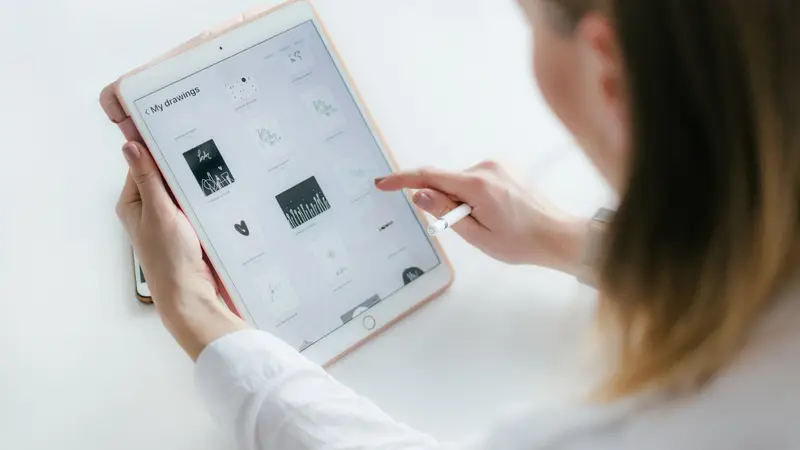
AirPlay from iPhone or iPad
If you already use an IPTV player on your iPhone or iPad, you can send the video to Apple TV with AirPlay:
- Make sure both devices are on the same Wi-Fi network.
- Start the stream in your player app.
- Tap the AirPlay icon and choose your Apple TV.
It is handy for a quick look, but for everyday viewing a native Apple TV app is smoother and frees up your phone.
Getting the best picture on either platform
Whichever route you take, a few general tips apply:
- Prefer native apps to mirroring. A player running directly on the Apple TV, Roku or plugged-in stick decodes the stream itself, which is smoother than relaying it from a phone.
- Use a wired connection where your device has an Ethernet port. Several Roku and Apple TV models include one.
- Check the HDMI port. For 4K, connect the device to a port that supports 4K and HDCP 2.2 – on some TVs only one or two ports do.
- Keep software up to date. Both Roku OS and tvOS updates sometimes improve video playback and app compatibility.
- Choose the right quality. If a 4K channel stutters, switch to the HD version.
Which option is best for you?
| Your situation | Best approach |
|---|---|
| You own an Apple TV 4K | Native player app from the App Store |
| You own a Roku TV with spare HDMI | Add a Fire TV Stick or Android TV device |
| You own a Roku stick and want to try first | Look for an M3U player in the Roku store |
| You only watch occasionally | Mirror from a phone or laptop |
Troubleshooting
- Roku app cannot find the playlist – check the URL carefully, and make sure you entered it in the right place if the app uses a website code.
- Mirroring keeps dropping – move closer to the router, or use the 5 GHz Wi-Fi band.
- Apple TV app shows no guide – add the EPG URL in the app's settings.
- Picture looks dim or odd colours – check the dynamic range settings on the Apple TV and TV.
Conclusion
Apple TV makes IPTV easy: install a good player, add your login and adjust a couple of video settings. IPTV on Roku is more limited, but you still have workable options – a store-listed M3U player, screen mirroring or, most reliably, a small Android-based stick plugged into the TV.
Whichever device you use, start with a free 24-hour test to make sure everything works, then choose the right plan on our plans page. More device walkthroughs are in our setup guides.
Questions and answers
Can I install any IPTV app on Roku?
No. Roku only runs apps from its own store and does not allow sideloading for normal use. You can use an M3U-compatible player if one is available in your region, or cast from another device.
What is the easiest way to watch IPTV on a Roku TV?
If no suitable player is listed in the Roku store, the simplest option is often to plug a Fire TV Stick or Android TV device into a spare HDMI port on the Roku TV.
Does Apple TV support IPTV?
Yes. Apple TV runs player apps from the App Store that accept Xtream logins or M3U playlists, and the Apple TV 4K handles HD and 4K streams well.
Can I use AirPlay to watch IPTV on Apple TV?
You can AirPlay video from an iPhone or iPad, but a player app installed directly on the Apple TV usually gives smoother playback and easier remote control.
Ready to try IPTVella?
Test the picture quality and channel list on your own TV for 24 hours, free. No card needed.